
Passwords and password managers
In this article, we’ll explore the common pitfalls associated with passwords, the advantages of using a password manager, and strong password practices to minimize the chances of a bad actor gaining unauthorized access to our personal information.

Editor’s note: This article was originally published in March 2020 and updated in August 2026.
In this article, we’ll explore common password mistakes, the advantages of using a password manager, and practical ways to reduce the chances of someone gaining unauthorized access to your accounts.
Passwords are our first and, at times, only line of defence in securing our online accounts and identities. They are used with almost every online service because they provide companies with a quick and easy way to onboard users and offer a simple way for those users to access their accounts.
While they are meant to keep our data secure, the trouble is, most of us use our passwords in an insecure way. Ultimately, we leave our emails, social media accounts, and potentially, even our money, exposed to the possibility of unauthorized access.
This is part 2 in our series for online security. Missed part 1? Read it here 👇
The trouble with passwords
Over the past 20 years, the proliferation of web services means that many of us now have dozens of online accounts. Having to choose and remember a new password for each of these websites can quickly get overwhelming.
As a result, many of us have adopted a relatively standard way of choosing and storing our passwords.
Typically, when asked to choose these codes, we:
pick a word or two we care about, then capitalize the first letter and/or add a number or symbol when prompted to do so. To make things easier to manage, some 59% of users have even been shown to reuse the same password or variations of the same password across multiple platforms.
While these practices seem like a good way to ensure our passwords are not forgotten, most of the time, the simple passwords we create are among the first to be guessed with common password cracking algorithms used by internet hackers. In fact, standard brute force attacks, which generate and test all possible combinations of characters of a certain length, are able to crack an 8-character password in less than one second.
By not safeguarding our logins and by re-using login information across multiple platforms, we leave ourselves vulnerable to these kinds of attacks.
To put it into context, if one of our accounts is compromised, a digital thief will have instant access to any other account where that password is duplicated.
Password length and uniqueness matter, but even a long password can be exposed through phishing, malware, or reuse on another website. A password manager can help you create a different password for every account without asking you to remember them all.
Have our passwords been compromised?
The website haveibeenpwned.com, created by security expert Troy Hunt, allows us to enter an email address to see if our online account information and passwords have been leaked from a data breach. It also lets us subscribe to breach notifications for any email we’d like to track.
If a password appears in a breach, change it immediately. Also change any other account that uses the same or a similar password.
You don’t need to wait for a breach notification to stop reusing passwords. Moving your most important accounts to unique passwords is a useful first step.
Choosing a strong password
The basics:
- DON'T use a password made with a simple selection of words, names, addresses, birthdays, or any personal information. These will be too easy for a person or computer to guess.
- DON'T use common song lyrics, book passages, internet queries, or memes for passwords. These too, while seemingly unique, can be easy to guess.
- DON'T use predictable patterns typed on a keyboard (e.g. “qwerty”, “asdfghjkl”, or “!@#$%^&*”).
- DON'T use the same password across different sites.
- DON'T use a password that has shown up in a past breach.
- DO use a password manager to generate a long, random, unique password for each account.
- Using passphrases (a string of random words) can be very secure while staying easy to remember.
Where a service allows it, choose a password of at least 15 characters. Longer passwords and passphrases are fine. Don’t rely on predictable substitutions like replacing “o” with “0” or adding “!” to the end of a familiar word.
Websites don’t need to require a particular mix of uppercase letters, numbers, and symbols to make a password strong. Those rules often lead people toward predictable patterns.
You usually don’t need to change a password on a schedule. Change it when it has been exposed, reused, or compromised—or when the service tells you there has been a security issue.
Some further tips on practicing good password hygiene:
- Don’t write passwords on sticky notes and leave them lying around. Passwords written in a notebook and stored in a desk are not very secure either. If you write down hard copies of a master password and other encryption keys, keep them locked in a vault, safety deposit box, or some other secure location.
- Don’t store bitcoin private keys or seed words in your password manager unless you understand the security trade-off and have deliberately chosen that setup.
- If you store TOTP codes or recovery codes in your password manager, protect the password manager with a strong master password and multifactor authentication. For especially sensitive accounts, consider using a separate authenticator app, passkey, or security key.
- Turn on multifactor authentication or a passkey for your password manager, using the strongest option it supports.
- Take extra care to protect accounts that can be used to log into or reset other accounts, such as your primary email address, Apple or Google account, and financial accounts.
- Learn how to spot and protect against phishing through official guidance from the service you use.
This XKCD classic comic perfectly illustrates the process behind choosing effective passwords
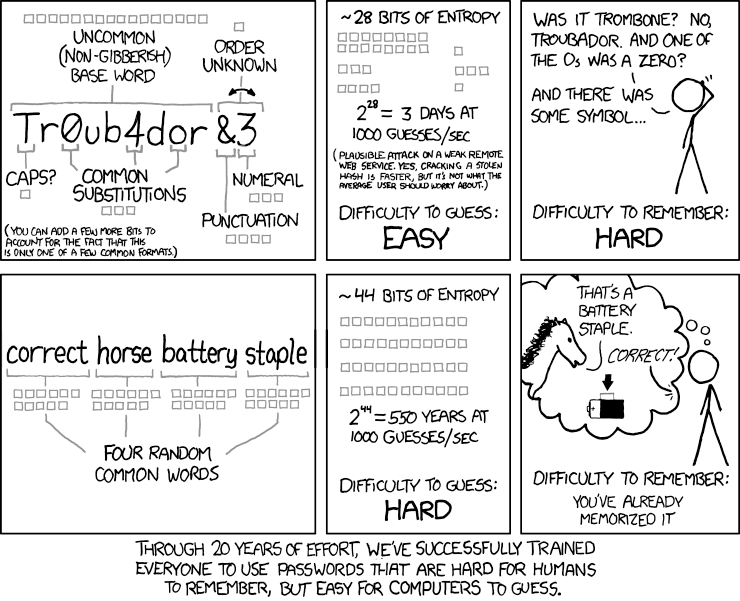
The idea behind the visual is simple: longer, less predictable passwords are harder to guess. You don’t need to calculate entropy yourself. A password manager can generate a strong password for you.
How long should our passwords be?
Aim for at least 15 characters when a password is used on its own, and use longer passwords when the service allows them. A randomly generated password or passphrase can work well.
The exact number of words or “bits of entropy” matters less than choosing a password that is long, unique, and difficult to guess. Your password manager can handle the complexity for you.
Passwords or passphrases?
A password can be a string of characters, while a passphrase is usually a longer password made up of several words. Both can be strong when they are long, unique, and difficult to guess.
If you create a passphrase yourself, avoid song lyrics, movie quotes, common sayings, or personal details. Those may be easy for someone else to guess.
If you use a password manager, let it generate the password or passphrase for you. Don’t make small, predictable changes to a generated password just to make it easier to remember.
How to generate and manage passwords
Password managers can generate secure passwords for us, remember all of our usernames and passwords, automatically plug them into websites, store secure notes, sync changes across devices, automatically fill in forms, and much more.
Some password managers can alert you when a password has appeared in a breach or is being reused.
When choosing a password manager, look for active maintenance, support for the devices you use, strong encryption, multifactor authentication or passkey support, secure recovery options, and the ability to export your data if needed.
A password manager is an important account to protect because it may contain the keys to many of your other accounts.
How to choose a password manager
There is no single password manager that is right for everyone. Choose one that works across the devices you use and has security features you understand.
Look for:
- Support for your phone, computer, and browser
- Password generation and autofill
- Multifactor authentication or passkey support
- Breach monitoring or compromised-password alerts
- Clear account-recovery options
- A way to export your data if you ever need to change providers
- Clear information about how your vault is encrypted and recovered
Cloud-based password managers can be convenient because they keep your vault available across devices. A local vault can give you more direct control over where your data is stored, but you are responsible for backups and recovery.
The most important thing is to choose a well-maintained option, protect it carefully, and use it consistently.
Choosing a strong master password
Password managers rely on one very strong password to secure its list of all our account logins. As one of the few passwords we’ll actually have to remember and one that we’ll enter almost every day, it’s important that we choose a master password that is at once strong, memorable, and easy to type. This password will protect the contents of our encrypted database as it syncs across the web to our various devices.
If your password manager uses a master password, make it long, unique, and difficult to guess. A passphrase can make a long password easier to remember.
Don’t reuse your master password anywhere else. Don’t share it, save it in an unprotected note, or choose one based on personal information.
Protect the password manager itself with multifactor authentication or a passkey when available. If the password manager supports secure recovery or emergency access, understand how that process works before you need it.
Security questions are passwords, too
Some websites still use security questions for account recovery. Questions about your first pet, birthplace, or family members are not strong security if the answers can be found online or guessed.
If a service requires security questions, use a unique, randomly generated answer instead of a truthful answer that someone could discover. Store it securely, just as you would a password.
When possible, choose a stronger recovery method instead. Security questions are an older form of account recovery and should not be treated as equivalent to a passkey, security key, or authenticator app.
Passkeys
Passkeys are a newer way to sign in without typing a password. They use a cryptographic credential stored on your device, password manager, or security key.
To approve a passkey sign-in, you may use Face ID, another biometric, or your device PIN. Passkeys are designed to resist phishing because they are connected to the legitimate website or service.
Passkeys can also make everyday sign-in easier. On some services, setting up a passkey allows you to remove your password entirely. Availability and recovery options vary by service and device.
For your most important accounts, consider adding a passkey and keeping a secure backup recovery method.
Conclusion
Passwords and password managers are still important parts of account security, but they are not the whole picture.
The most important things to remember are:
- Use a unique password for every account.
- Use a password manager to generate and store passwords.
- Choose long passwords or passphrases.
- Don’t rely on arbitrary character rules or predictable substitutions.
- Protect your password manager with multifactor authentication or a passkey.
- Use passkeys or security keys when available.
- Keep recovery codes and account-recovery options secure.
- Protect your devices and watch for phishing.
For your Shakepay account, review the current options under Settings → Security & privacy. Shakepay currently supports 2FA, authenticator-app TOTP, device locks, withdrawal confirmations, account notifications, and passkeys, depending on your account and device.
Taking all of these steps should give us greater peace of mind when it comes to our account security.
In our next guide, we delve deeper into our discussion around data security and explore the importance of 2-step verification when protecting our online accounts.